How to Make a Travel Wrapped Video of Your Year
Last updated: November 13, 2026
The year is almost over, and you've been to some amazing places. In this guide, you'll learn how to turn your trips of the year into a fast-paced animated map video. It's perfect for Instagram Reels, TikTok, and YouTube Shorts.
No video editing skills needed, and it only takes a few minutes.
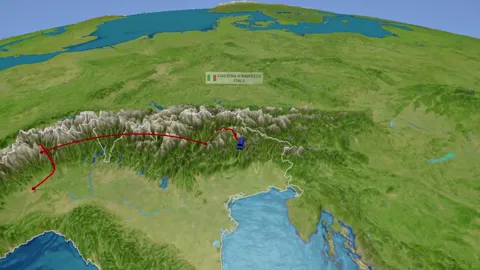
- It's short. A fast-paced video of 10 to 30 seconds is ideal for Instagram Reels, TikTok, and YouTube Shorts. Short videos are often watched more than once.
- It's easy to follow. Everyone understands a map. No need to explain where you went.
- It's personal. Add a photo from each trip, and the video tells your story of the year.
- It's quick to make. With anim8map, you only enter your stops. No video editing skills needed.
- Your photos: Most photo apps on your phone have a map view that shows where your photos were taken. Scroll through it month by month.
- Your location history: If you use Google Maps with Timeline turned on, it shows the places you visited, day by day.
- Your emails: Search for flight, train, and hotel booking confirmations.
- Your calendar and travel apps: Airline apps and travel journal apps often keep a list of past trips.
- Months in the labels: Each stop has a custom label, like "Lisbon / March". This turns your map into a timeline of your year. Click Edit label next to a stop to change its label. Learn more in our guide to customizing labels.
- Jumping back home: After each trip, the video goes back home with the Jump to travel mode. Instead of showing the flight home, the camera moves straight back to your home town. This saves time and keeps the video focused on the trips. Each new trip then starts with a flight from home.
- Duplicating your home town: Use the Duplicate button to add your home town again quickly, then drag it to the right place.
- Format: Vertical. Vertical videos fill the whole screen on Instagram, TikTok, and YouTube Shorts.
- Camera style: Gentle. With many quick legs, the gentle camera avoids zooming in and out all the time. If you have only a few long trips, try Cinematic for a more dramatic look.
- Intro and outro: Zoom. The video starts right away at your first stop. No time is lost at the beginning.
- Video speed: Ultra. This is the key setting. At Ultra speed, an 8-stop trip takes only about 12 seconds, compared to 36 seconds at Regular speed.
- Location labels: Grow. Labels smoothly grow into view as you arrive. For the cleanest look, you can also hide all labels.
- Hide repeat-visit labels: On. You can find this under "Advanced style settings". Your home town gets a label the first time only, not after every trip.
- Pause at unlabeled stops: Off. The video keeps moving without stopping.
- Vibrant colors: On. Bright colors stand out more in a busy social media feed.
- Pick one great photo per trip. Choose the photo that sums up the trip best, like a famous view, a great meal, or a fun moment with friends.
- Show more in less time. Use the "Split 2" or "Split 3" layout to show two or three photos side by side in a single frame.
- Choose simple photos. Busy photos are hard to take in within one second. Photos with one clear subject work best.
- Crop for vertical. Your photos are cropped to the video format. Choose the vertical format before you add photos.
- Post at the right time. Recap videos are popular from late November until mid-January. Post early, before everyone else does.
- Write a short caption. For example: "12 months, 9 cities, 3 continents. Where should I go next year?" Ending with a question invites comments.
- Add hashtags. For example: #TravelWrapped #TravelRecap #YearInReview #TravelMap.
- Add numbers as text on screen. In the Instagram or TikTok editor, add a short text like "3 trips, 24,000 km". Numbers make people stop scrolling.
- Pin it. Pin the video to your profile, so new visitors see your travel year first.
- List your trips of the year, in order
- Enter your stops, starting from home
- Add the month to each label
- Use "Jump to" to go back home after each trip
- Load the Travel Wrapped settings (vertical, Ultra speed)
- Add one great photo per trip
- Create a free preview, then your full video
- Share it with a trending sound, a caption, and hashtags
What Is a Travel Wrapped Video?
You probably know the yearly music recaps that everyone shares in December. A Travel Wrapped video is the same idea for your trips: one short video that shows everywhere you've been this year.
An animated map is perfect for this. In just a few seconds, your viewers fly with you from trip to trip and see the whole year at a glance. Here's why it works so well:
In this guide, we'll walk you through the whole process, from collecting your trips to posting your video.
Step 1: Collect Your Trips of the Year
Before you open the editor, make a list of all the places you visited this year, in order. You'd be surprised how much you forget! These sources can help:
You don't need to include every single stop. If you travelled a lot, pick the one to three places for each trip. A video with fewer stops is easier to follow, especially at high speed.
Step 2: Enter Your Stops
Go to the anim8map video editor. In the "Add Your Stops" step, start with your home town, then add the places of your first trip, and so on. Choose a travel mode for each stop: flight, train, car, ferry, and many more.
Here's an example of a year with three trips:
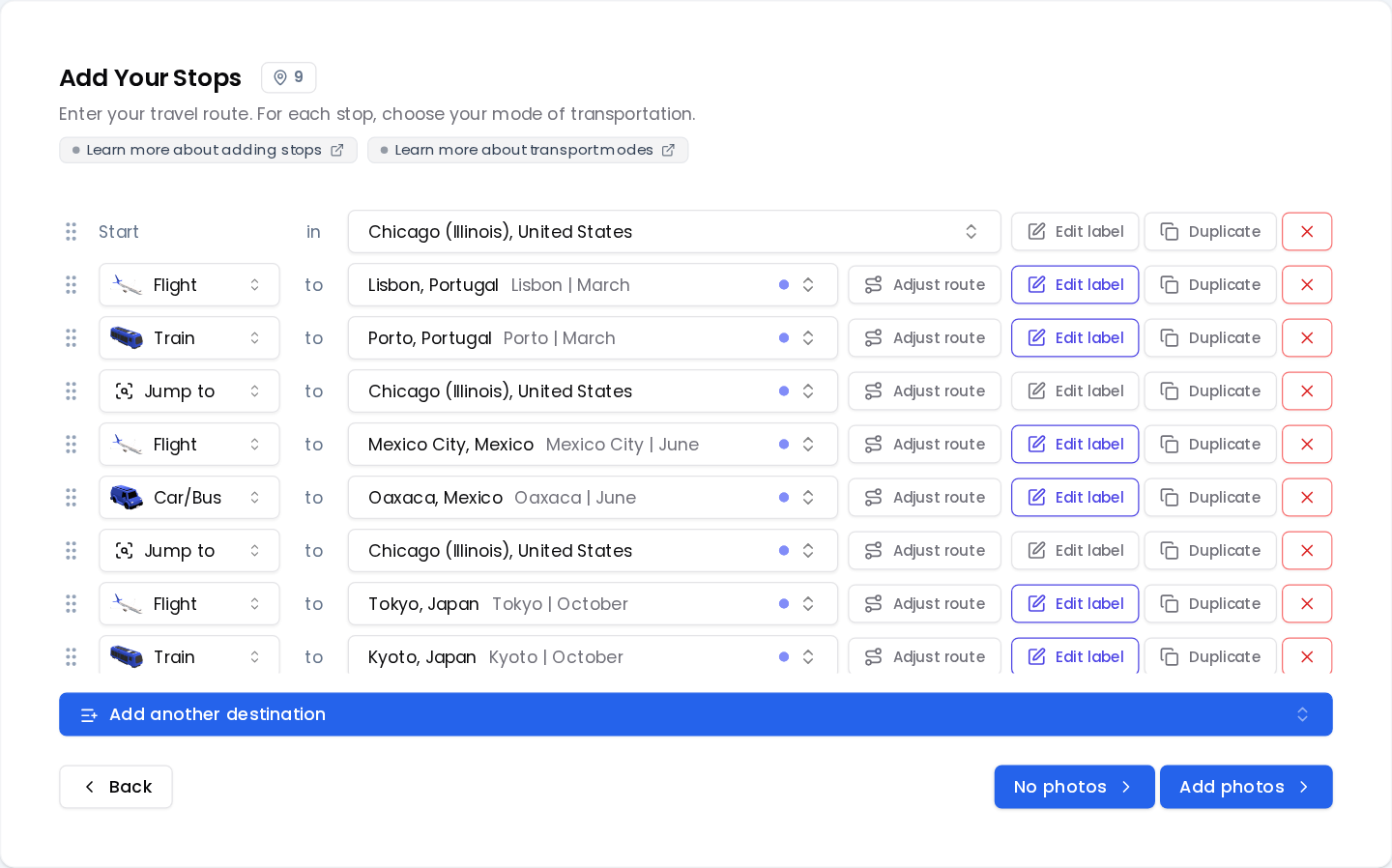
A few tricks were used here:
Did you travel on a ferry, a road trip, or a train journey? Learn more about all travel modes in our guide to animating different types of routes.
Step 3: Choose the Right Settings
The right style makes the difference between a slow travel documentary and a punchy short. These are the settings we recommend:
You can load all of these settings with a single click. Your stops and photos stay as they are, and you can still change any setting afterwards:
Background music: If you'd like to use music, pick an upbeat track like Energetic, Travel Vlog, or Upbeat Guitar. Our tip: Choose No background music instead and add a trending sound in Instagram or TikTok. Videos with popular sounds often get more views.
Step 4: Add a Photo From Each Trip
Photos make your Travel Wrapped video personal. When you're done adding stops, click Add photos and add your favorite photos to the stops.
At Ultra speed, each photo is shown for about one second. That's enough for a quick impression, but it also means you should keep it short:
Learn more in our guide to adding photos to your travel animation.
Step 5: Create Your Video
In the last step, choose your video quality and plan. Ultra speed, Grow labels, custom labels, photos, and the Jump to mode are all Premium features. Before you buy anything, you can create a free preview to see how your video looks.
If you like the preview, choose one of our Premium plans to create the full video in high quality. We recommend High (Full HD) quality for social media.
Step 6: Share Your Video
Once your video is ready, you'll find it in your video dashboard. On your phone, you can share it straight to Instagram or TikTok. See our guide to sharing your travel route on Instagram for details.
A few tips to get the most out of your post:
Quick Checklist
Ready to Wrap Up Your Travel Year?
Your Travel Wrapped video is a great way to look back at your year, and to inspire your friends to travel more. It only takes a few minutes, so why not start right now?
If you have any questions, please don't hesitate to contact us!
 YouTube
 TikTok


%20--%3e%3csvg%20version='1.1'%20id='Ebene_1'%20xmlns='http://www.w3.org/2000/svg'%20xmlns:xlink='http://www.w3.org/1999/xlink'%20x='0px'%20y='0px'%20width='120'%20height='80'%20viewBox='0%200%20120%2080'%20style='enable-background:new%200%200%20120%2080;'%20xml:space='preserve'%3e%3cg%20id='export-badges'%3e%3cg%20id='production-final'%20transform='translate(-36.000000,%20-6018.000000)'%3e%3cg%20id='card_google_pay'%20transform='translate(36.000000,%206018.000000)'%3e%3cpath%20id='Rectangle-11'%20class='st0'%20style='fill-rule:evenodd;clip-rule:evenodd;fill:%23FFFFFF;'%20d='M4,0h112c2.2,0,4,1.8,4,4v72c0,2.2-1.8,4-4,4H4c-2.2,0-4-1.8-4-4V4C0,1.8,1.8,0,4,0z'/%3e%3c/g%3e%3cg%20transform='translate(0.000000,400.000000)%20scale(0.100000,-0.100000)'%3e%3cpath%20d='M726.4-56417.9c-21.4-5.5-41.9-28.7-45.5-51.8c-1.7-10.4-1.7-10.4,6-10.4c23.4,0,50.1,31.1,47.7,55.6%20C733.9-56416.2,733.7-56416,726.4-56417.9z'/%3e%3cpath%20d='M903.7-56440.3c-1.9-0.5-10.8-1.7-19.8-2.4l-16.4-1.7v-126.2v-126.2h10.8h10.8v52.8v52.8l28.4,1%20c24.1,0.7,30.1,1.7,41.4,7c18.5,8.7,29.9,19.3,37.8,35.4c5.5,11.8,6.5,16.9,6.7,35.4c0,17.8-1,23.6-5.5,33%20c-7.5,14.9-23.6,28.9-39.3,34C947.1-56441.7,911.5-56438.4,903.7-56440.3z%20M956-56467.5c19-9.9,29.1-31.3,26-54.4%20c-4.3-33-26.5-49.6-66.2-49.6c-10.4,0-20.5,0.7-22.6,1.4c-3.4,1.2-3.9,8.4-3.9,53.7c0,28.9,0.7,53.2,1.9,54.2%20c1,1,13.7,1.4,28.2,1C940.8-56462,947.8-56463.2,956-56467.5z'/%3e%3cpath%20d='M623.1-56487c-48.7-12-67.5-74-42.6-140.9c7.5-20.2,25.3-47.9,38.5-59.7c12-10.8,23.1-12,43.4-4.3c16.1,6,34.7,6,48.4,0%20c13.2-6,28.2-6,38.1-0.2c9.9,6.3,24.8,26,35.4,47.7c8.9,17.8,10.1,22.4,6.7,22.4c-1.2,0-6.7,4.1-12.5,8.9%20c-28.7,24.6-28.9,70.1-0.5,94.9l8.7,7.7l-10.1,9.2c-19,16.6-44.3,21-69.9,11.6c-21-7.9-25.1-7.9-44.6-1.2%20C643.6-56484.9,636.1-56483.9,623.1-56487z'/%3e%3cpath%20d='M1053.1-56512.3c-11.6-3.1-25.5-9.9-27.2-13c-1.7-2.4,5.1-18.1,7.2-16.9c27.2,14,48.4,16.4,63.6,7.7%20c10.1-5.8,19-22.6,19-35.9v-9.9l-23.6-2.6c-13-1.7-29.9-5.3-37.6-8.2c-40-15.4-55.2-61.7-29.6-90.6%20c10.4-11.8,23.8-17.6,41.4-17.6c15.4,0,33.7,7,43.8,16.6c2.9,2.7,6,5.1,6.5,5.1c0.7,0,2.2-4.3,2.9-9.9c1.7-9.6,1.7-9.6,11.6-8.9%20c7.2,0.5,9.6,1.7,8.9,4.3c-0.2,1.9-1.4,34.4-2.4,72.3c-1.4,65.3-1.7,69.1-7.2,80.2C1117.9-56514,1086.8-56502.9,1053.1-56512.3z%20M1115.7-56623.4c0-25.1-2.2-31.8-13.7-42.6c-20.2-19.3-52.3-17.8-62.6,2.9c-4.8,9.6-3.9,28.4,1.9,37.8%20c8.7,14,34.2,23.6,64.3,24.6l10.1,0.2V-56623.4z'/%3e%3cpath%20d='M1160.3-56516.2c0.7-1.2,16.1-40.7,34-87.2l32.3-84.8l-7-14.7c-9.6-20.5-24.3-38.1-39.7-47.5%20c-7.5-4.3-13.5-9.2-13.5-10.8c0-5.1,5.5-15.2,8.2-15.2c5.3,0,27,14.2,35.7,23.4c12,12.3,28.9,42.4,40.2,71.8%20c5.3,13.2,19.8,50.6,32.3,83.1c12.5,32.5,25.1,64.8,27.9,71.8l5.1,12.5h-11.8h-11.8l-7-18.6c-4.1-10.4-15.7-42.9-26.3-72.3%20c-17.6-49.9-22.4-60.2-22.6-49.4c-0.2,2.2-11.8,34.4-26,71.5l-26,67.5l-12.8,0.7C1162.7-56513.8,1159.1-56514.3,1160.3-56516.2z'%20/%3e%3c/g%3e%3c/g%3e%3c/g%3e%3c/svg%3e)
